Trade Protection changed the way CS2 skin trading works. Valve introduced a system that gives traded Counter-Strike 2 items a 7 day protection window. During that time, the trade can still be reversed if something went wrong. That matters a lot for players who get phished, hit by malware, or tricked into approving a fake trade.
For regular CS2 players, the biggest question is simple. How do you reverse a trade protected trade on Steam? This guide explains how Steam Trade Protection works, when you should use it, what happens after reversal, and how to secure your account so you do not need to use it again.
What Is Steam Trade Protection? How Does It Work?
Steam Trade Protection is a security feature for CS2 items. After you receive Counter Strike 2 items in a trade, those items stay Trade Protected for 7 days.
Here is the simple version of what that means:
This system is meant to help users recover skins after account hijacks and malicious trades. It is not designed as a way to undo a normal trade just because you changed your mind.
Another important detail is scope. If you trigger a reversal, Steam does not let you pick just one nice trade to keep and one bad trade to undo. Reversing will roll back all trades containing Trade Protected CS2 items from the last 7 days.
When Should You Reverse a Trade?
You should only use the trade reversal feature if there is a real security problem.
Use it when:
- Your account was compromised through phishing, malware, or a password leak
- You accidentally approved a malicious trade, such as an API scam or fake confirmation setup
- You notice suspicious trades in your trade history that you did not make
IMPORTANT: Do not use this feature to cancel a legitimate skin trade just because the market moved, the price changed, or you changed your mind. Steam introduced Trade Protection as an emergency recovery tool, not as a regular trading option. Abusing it could lead to restrictions or other consequences for your Steam account.
Before you click the final reversal button, remember these two consequences:
- Steam will reverse all eligible CS2 trades from the last 7 days
- Your account will receive an automatic 30 day restriction on trading and the Steam Community Market
That is a heavy penalty, so use it only when protecting your account is more important than keeping your account active for trading.
IMPORTANT: It is important to understand each platform’s rules before making CS2 skins trades. Every platform handles trade reversals differently. For example, most P2P marketplaces permanently blocks users from trading on their platform if they go through a trade reversal process.
Step-By-Step Guide How to Reverse a Steam Trade
If you need to reverse a trade protected trade on Steam, follow these steps carefully.
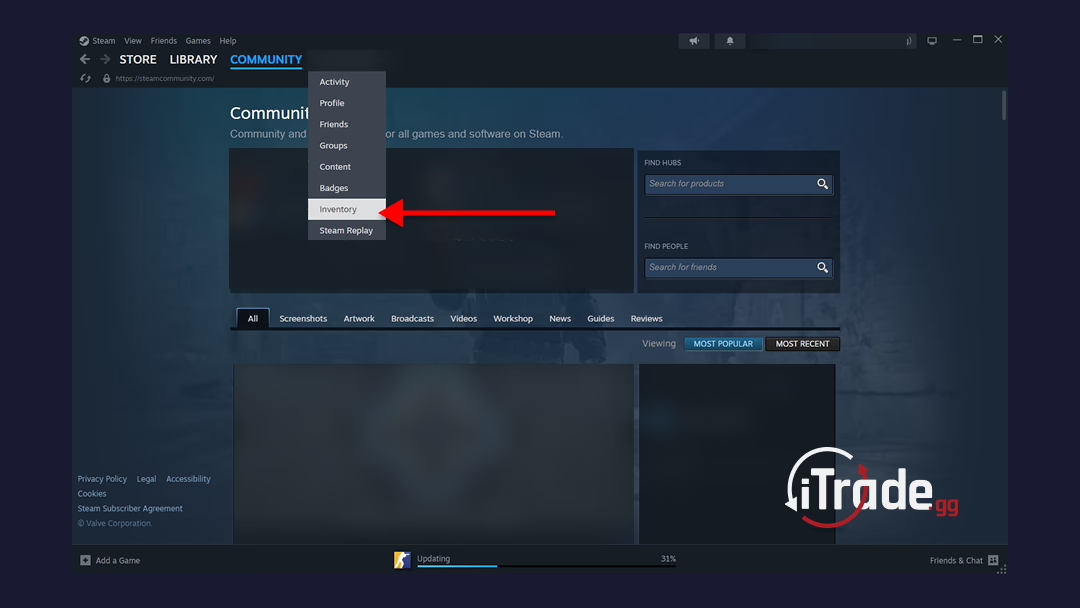
- Open your Steam Inventory. Log into your Steam account and go to your inventory page.
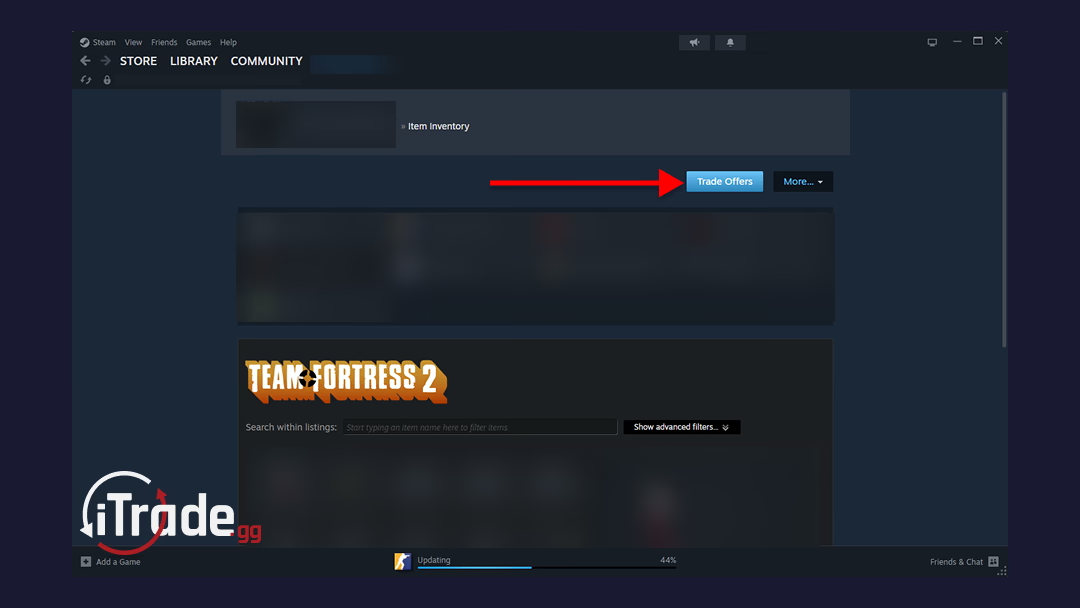
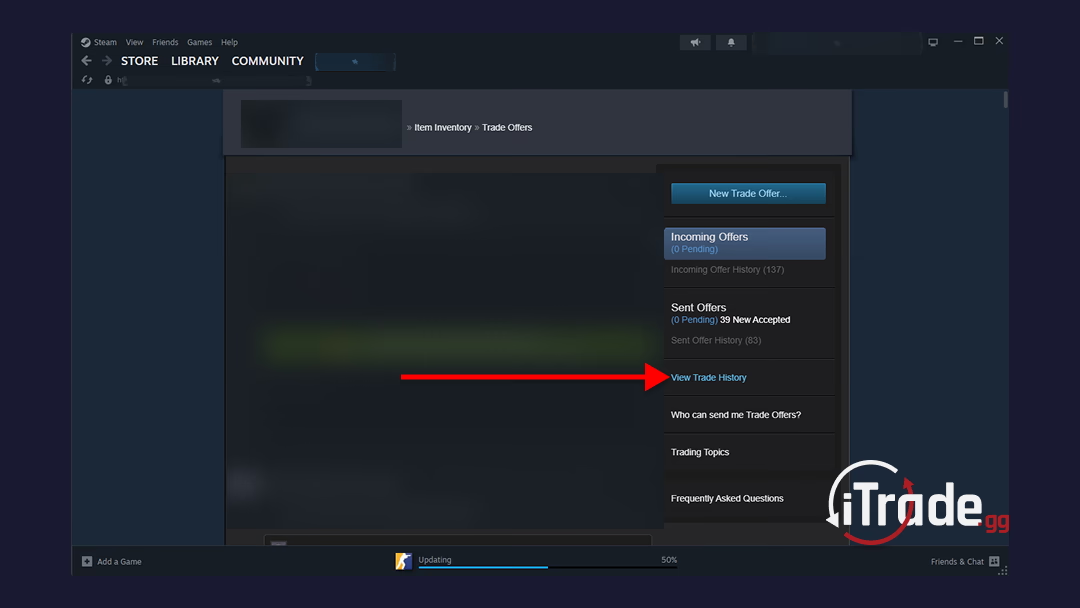
- Click Trade Offers. In the top right area of your Steam inventory, click Trade Offers.
- Open View Trade History. Inside the trade page, open View Trade History to see your recently completed trades.
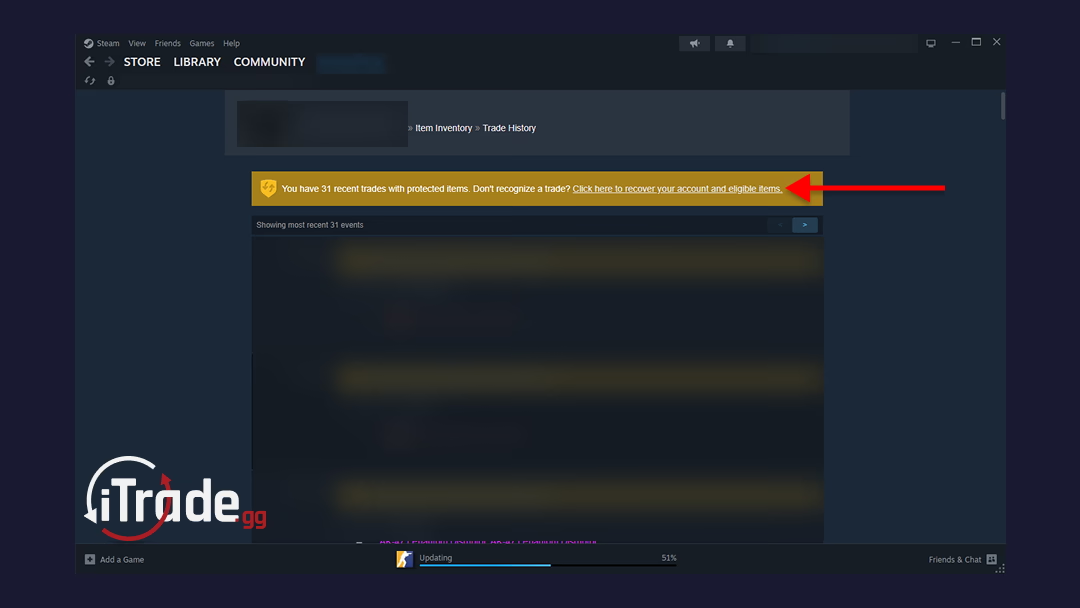
- Click the yellow banner at the top. If your recent CS2 trades include Trade Protected items, Steam !
- Scroll down and click the red reversal button. At the bottom of the page, Steam will show the trades that will be reversed. If you continue, Steam will reverse all eligible Trade Protected CS2 trades from the last 7 days. You will be asked one more time to confirm the action.
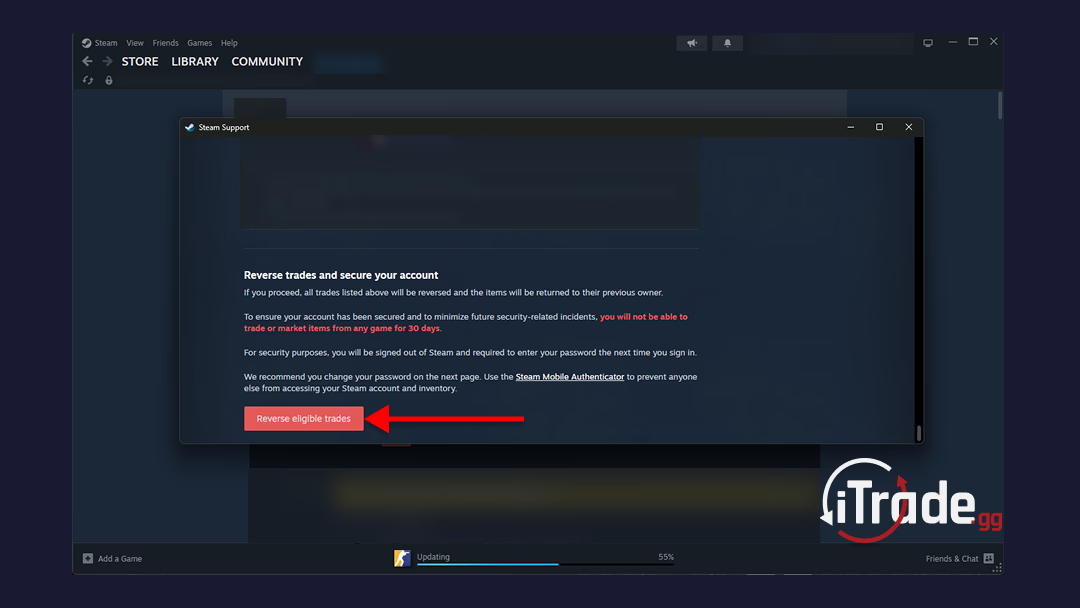
Important: After you confirm, Steam will sign you out from all devices and you will need to log in again.
What Happens After a Reversal
Once you reverse the trades, Steam returns the CS2 items from those eligible trades to their previous owners. This is the main goal of the feature. It gives hacked or scammed users a way to recover skins without waiting for a manual support process.
After that, Steam places an automated 30 day restriction on your account. During that time, you cannot trade and you cannot use the Steam Community Market. This cooldown exists to reduce abuse and to push users to secure their account before trading again.
You should also expect to be logged out and asked to sign back in. If your account was actually hijacked, treat that moment as a warning sign and secure everything right away.
In practice, the timeline looks like this:
IMPORTANT: If the other side of the trade decides to reverse it, the items returned to your inventory also become trade-locked for 7 days. This is why you should only trade with reputable users or use trusted bot based CS2 trading platforms like iTrade.
Protect Yourself From Future Scams
Trade reversal is useful, but prevention is still much better. If your Steam account gets hijacked, act fast.
What to do right away if your account may be compromised
- Change your Steam password immediately
- Change your email password too, especially if that email is linked to Steam
- Check your authorized devices and sign out everywhere if something looks wrong
- Run a malware scan on your PC
- Make sure Steam Guard Mobile Authenticator is enabled
- Review your Trade History and recent confirmations
- Report hijacked accounts or scam profiles through Steam if needed
Common ways traders get tricked
- Fake trading sites that copy the Steam login page
- Malware that steals session data or browser cookies
- Social engineering through Discord, Telegram, or direct messages
- Fake middleman deals
- Malicious trade confirmations that look similar to a real one
Safer habits for CS2 traders
- Use a unique password for Steam and for your email
- Never log in through random skin websites you do not trust
- Double check the exact account you are trading with every single time
- Read the trade window carefully before confirming
- Do not rush because of fake urgency
- Keep your phone and email secured, because both protect your Steam account
Final Thoughts
Steam Trade Protection is a powerful safety tool for CS2 players, especially if you catch the problem quickly. It gives you a 7 day window to reverse Trade Protected trades and recover your skins, but it comes with a serious cost because Steam will reverse all eligible recent CS2 trades and lock your account from trading and market use for 30 days.
From our side as a trading platform, the best advice is simple. Review your Trade History regularly, enable every major security setting, and treat trade reversal as an emergency button, not a normal feature. Prevention should always come first.
If you are looking for a clearer and more direct way to trade CS2 skins, staying safe before, during, and after each trade is what protects both your inventory and your options.
 Olivier Tremblay
Olivier Tremblay
An experienced analyst of CS2 skins and item trading, with over a decade of involvement in the Counter-Strike 2 (formerly CSGO) community. He creates informative guides on CS2 items, sticker crafts, item trading, and all news related to Steam, assisting regular players in selecting visually appealing cosmetics, trading items more effectively, and staying informed about updates on the Steam platform. He monitors skin collections, market trends, and community news to provide you with valuable content.